
AI Image Editor
Upload a photo, say what to change, and the AI image editor changes it while keeping the rest of the picture.
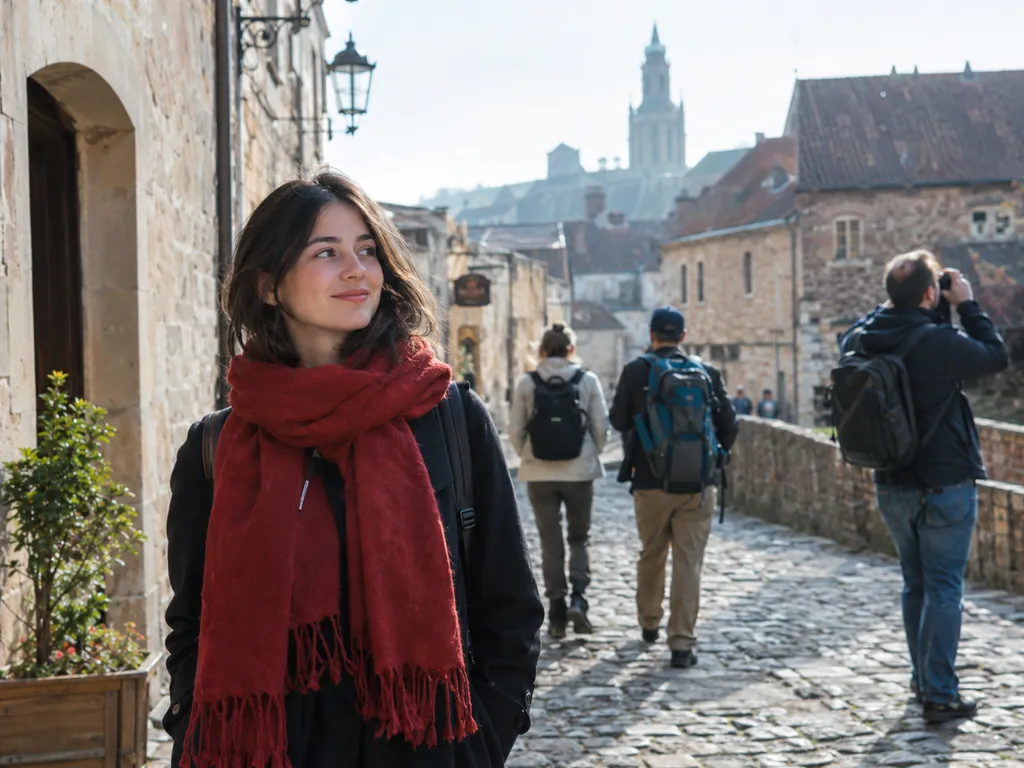
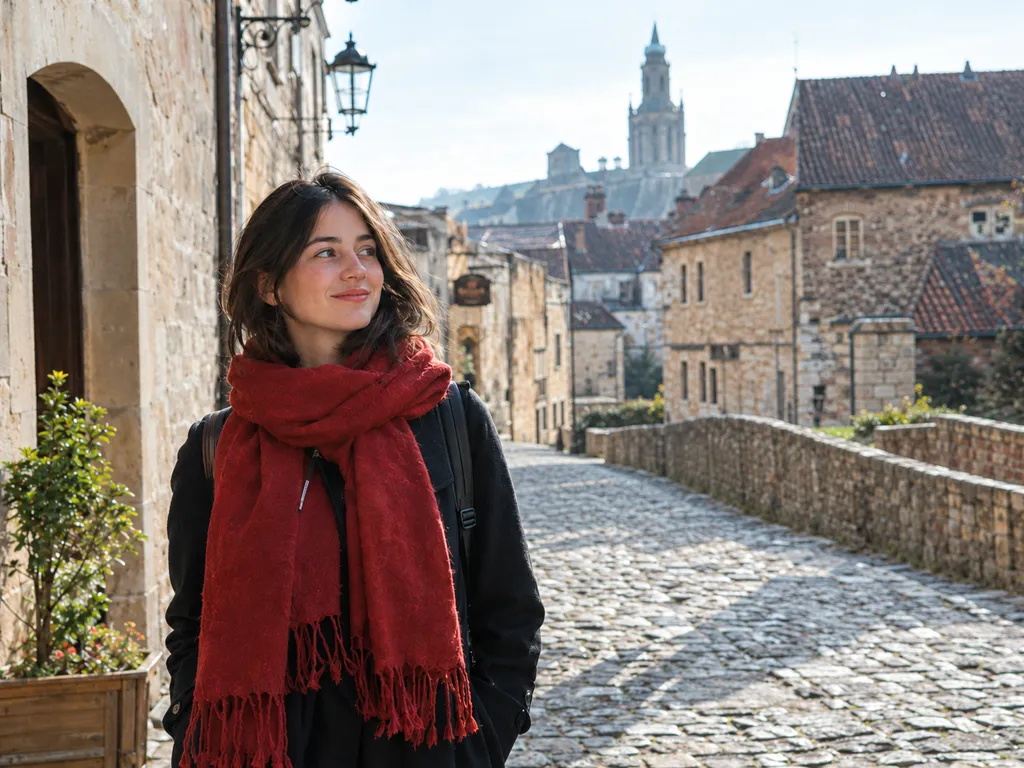
“Remove the tourists behind her”
Upload a photo to make your own edit
One photo, one sentence
What an AI image editor can change in a photo
Every pair below is one upload and the prompt under it, edited here with GPT Image 2. The originals were generated for this page.
Remove people and objects
Tourists behind you, a bin by the door, a wire across the sky: name what should go and the space behind it is filled in. Say what stays, and it stays.
PromptRemove the three tourists and the man taking a photo from the background. Keep the woman, her pose, her face, her red scarf, the street, the buildings and the light exactly as they are.
Before After Change the background
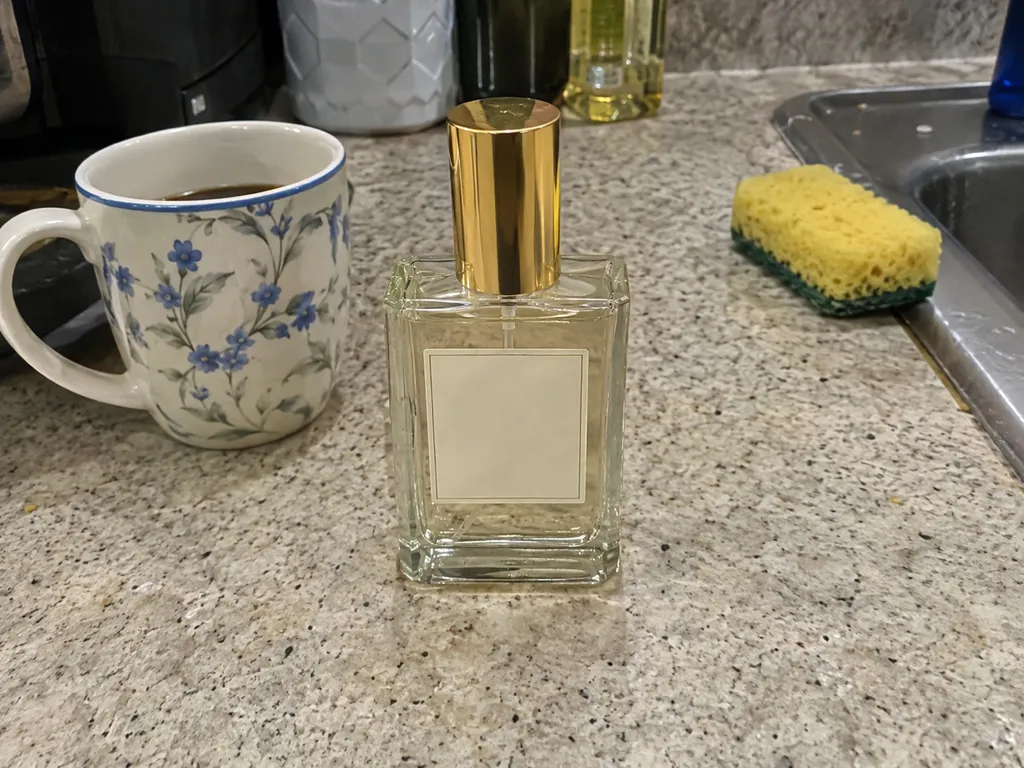
Move a product off a kitchen counter and onto a studio plinth, or a portrait onto a beach. The subject keeps its shape, its label and its colours; only the scene around it changes.
PromptReplace the kitchen counter and everything around the bottle with a clean studio scene: a pale beige stone plinth, soft window light from the left and a gentle shadow. Keep the perfume bottle, its shape, its label and its gold cap exactly the same.
Before 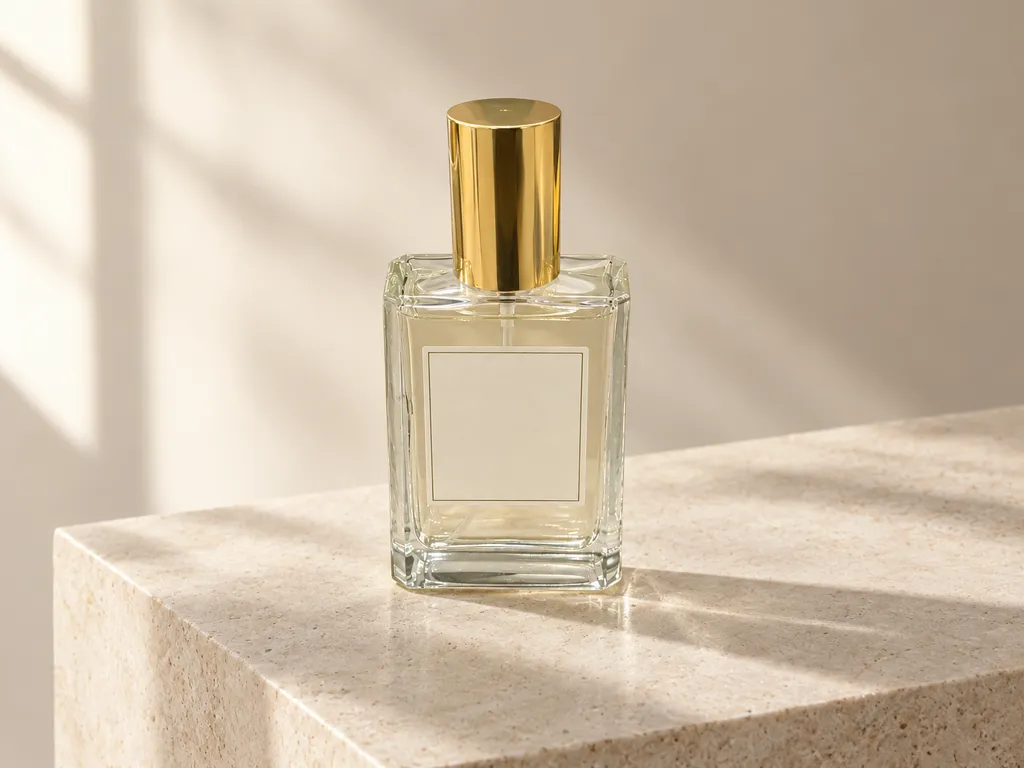
After Change an outfit
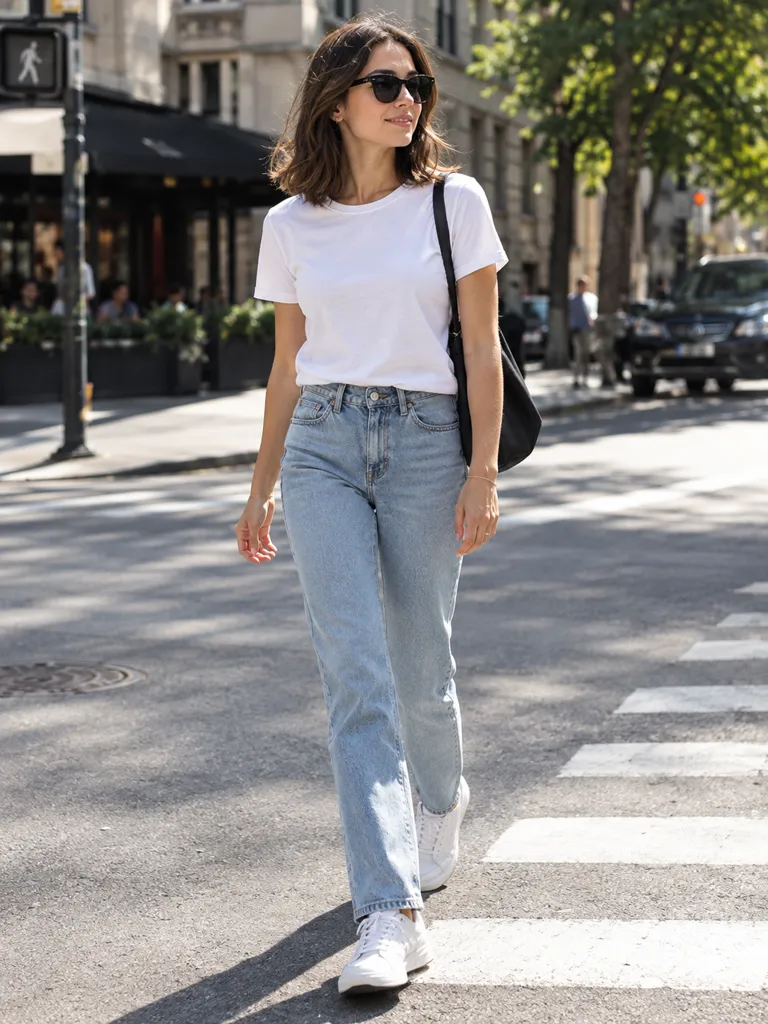
Try a suit, a dress or another colour on the same person. Ask for the face, the hair and the pose to stay, and the street around them stays too.
PromptChange her outfit to an emerald green tailored suit with a white silk blouse and black loafers. Keep her face, hair, body, pose, the crosswalk, the background and the lighting unchanged.
Before 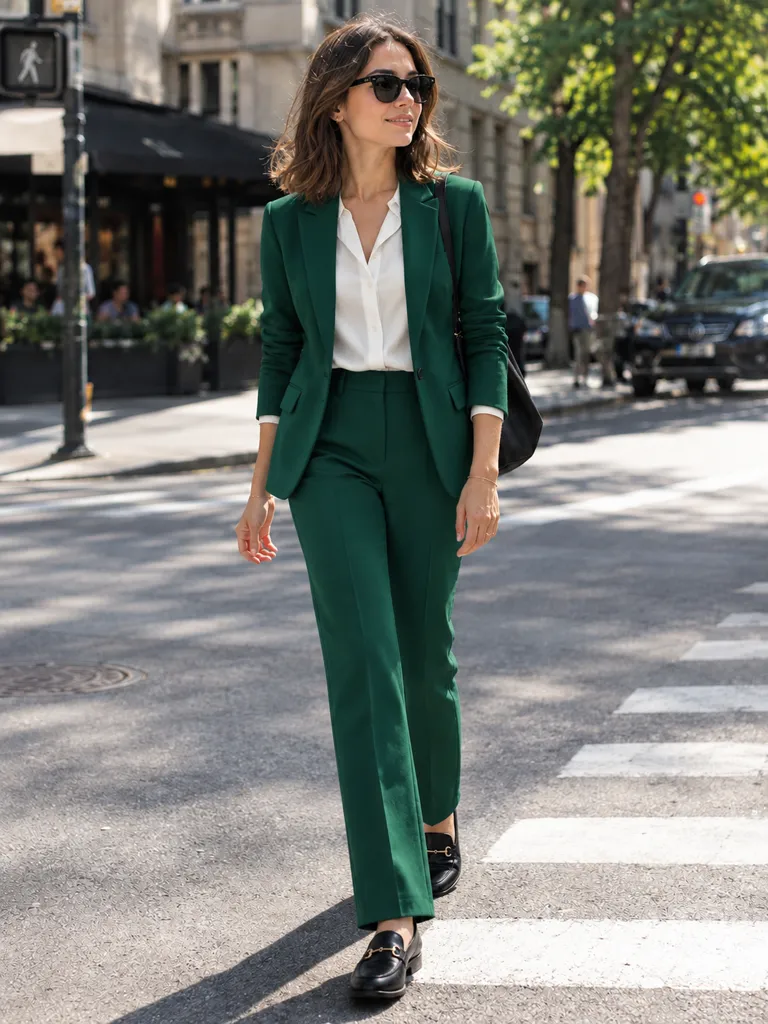
After Try a new hairstyle
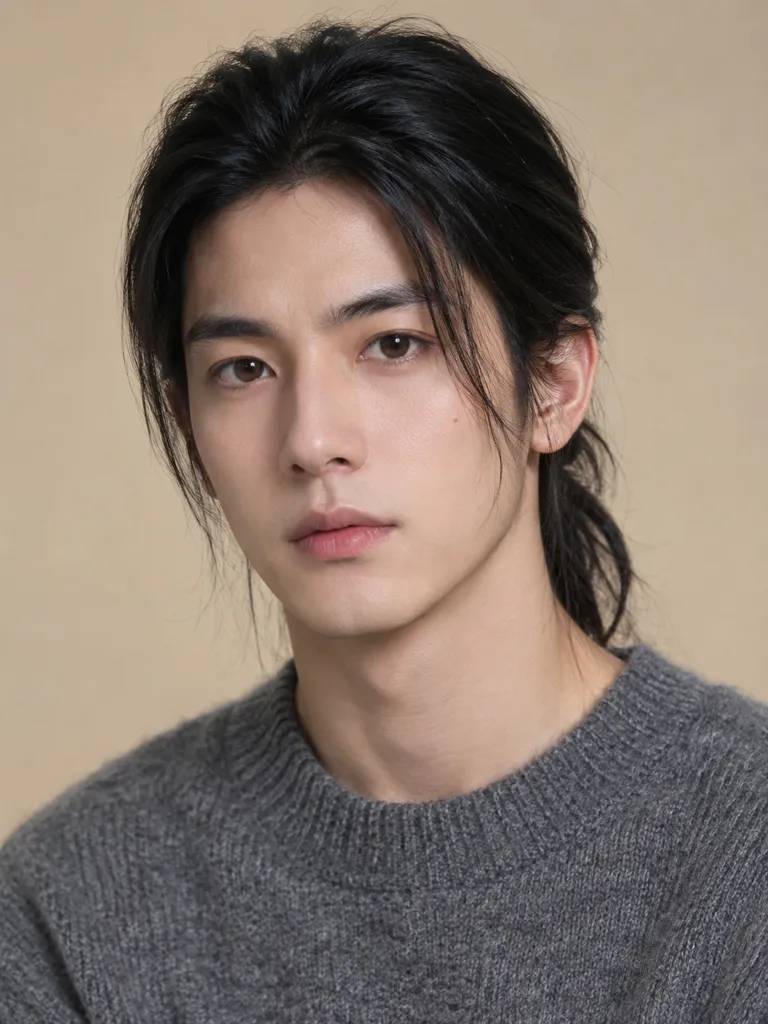
See a short cut, a fringe or a new colour before the appointment. The face, the expression and the clothes are the ones you uploaded.
PromptGive him a short textured crop haircut with a slight fade on the sides. Keep his face, expression, sweater, the background and the lighting unchanged.
Before 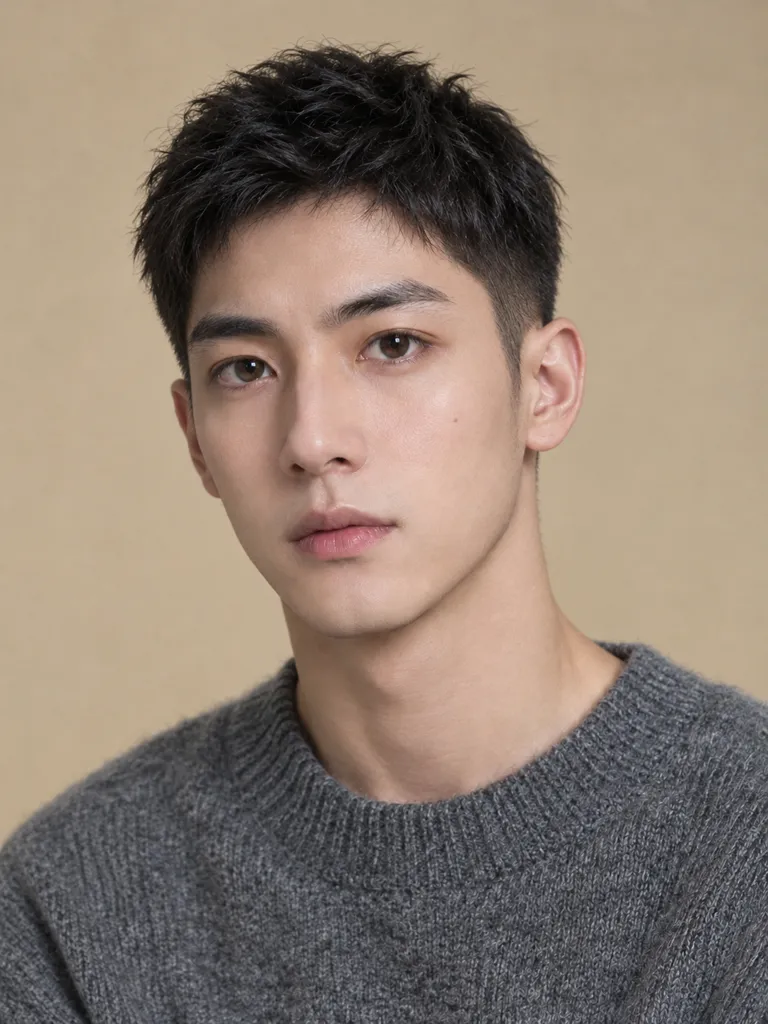
After Edit the text in a picture
Change what a sign, a poster or a label says. The new words come out in the same hand or typeface as the old ones, on the same surface.
PromptChange the chalk lettering to read "TODAY: CHERRY PIE" and change the lemon drawing to a small cherry drawing. Keep the chalk handwriting style, the board, the sidewalk and the café behind it unchanged.
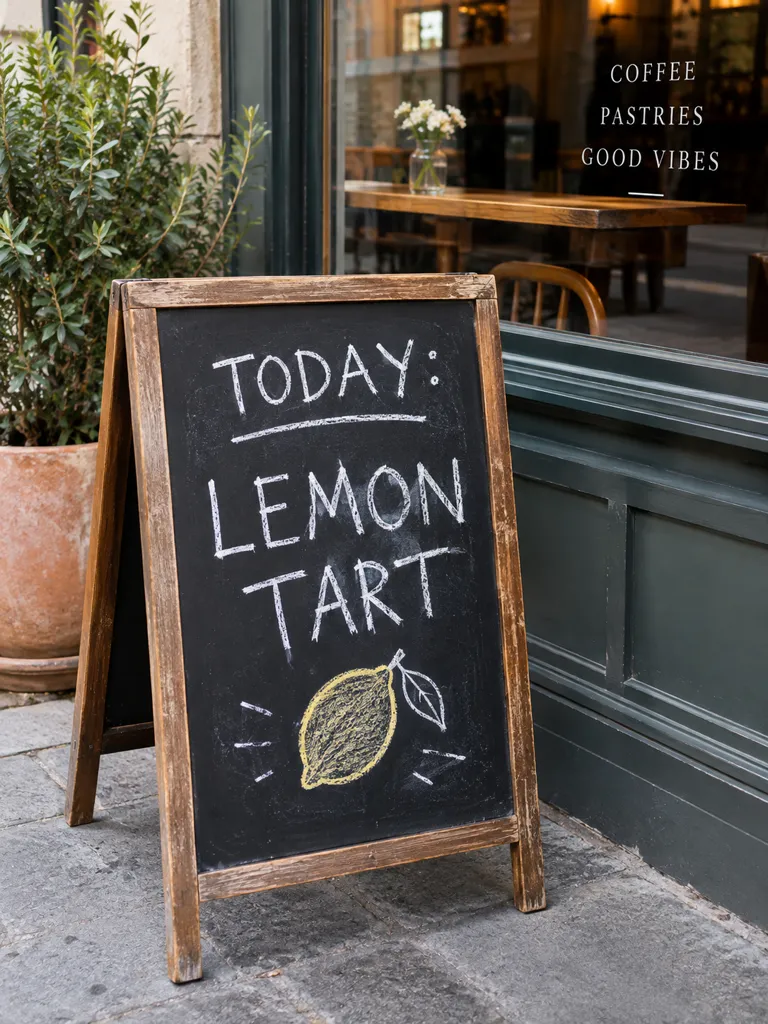
Before 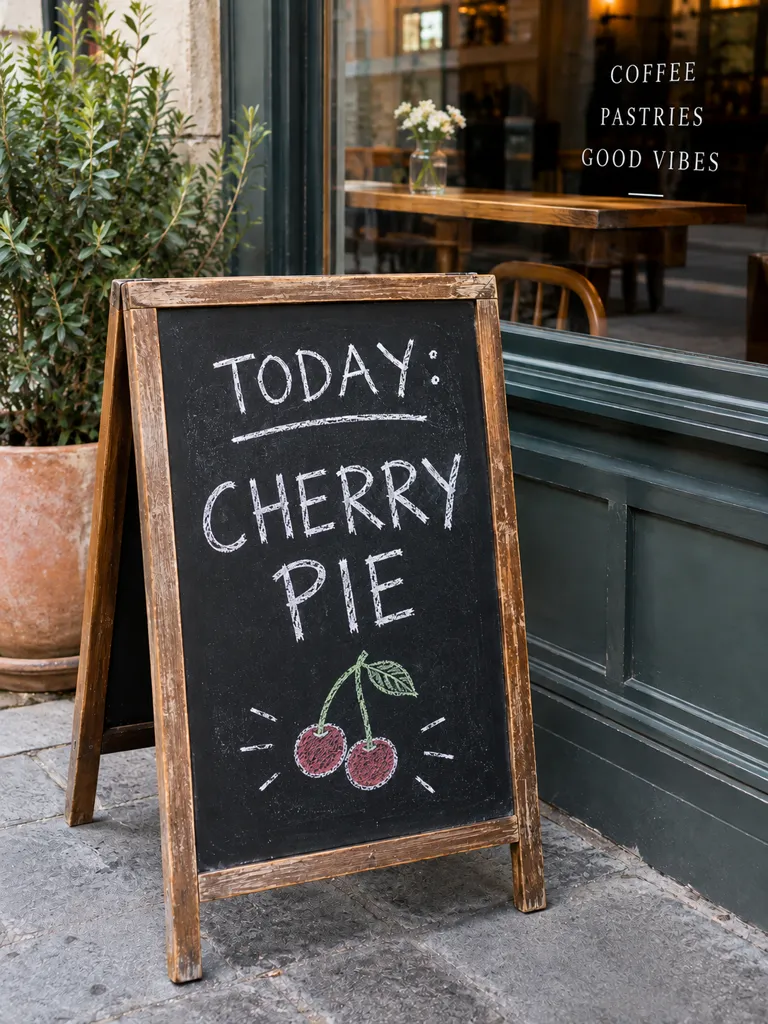
After Turn a photo into a painting
An oil painting, a watercolour or a pencil sketch of the same scene. The people and the composition stay where they were; only the medium changes.
PromptTurn this photo into an impressionist oil painting with visible brush strokes and warm golden colours. Keep the woman, her pose, the wheat and the composition the same.
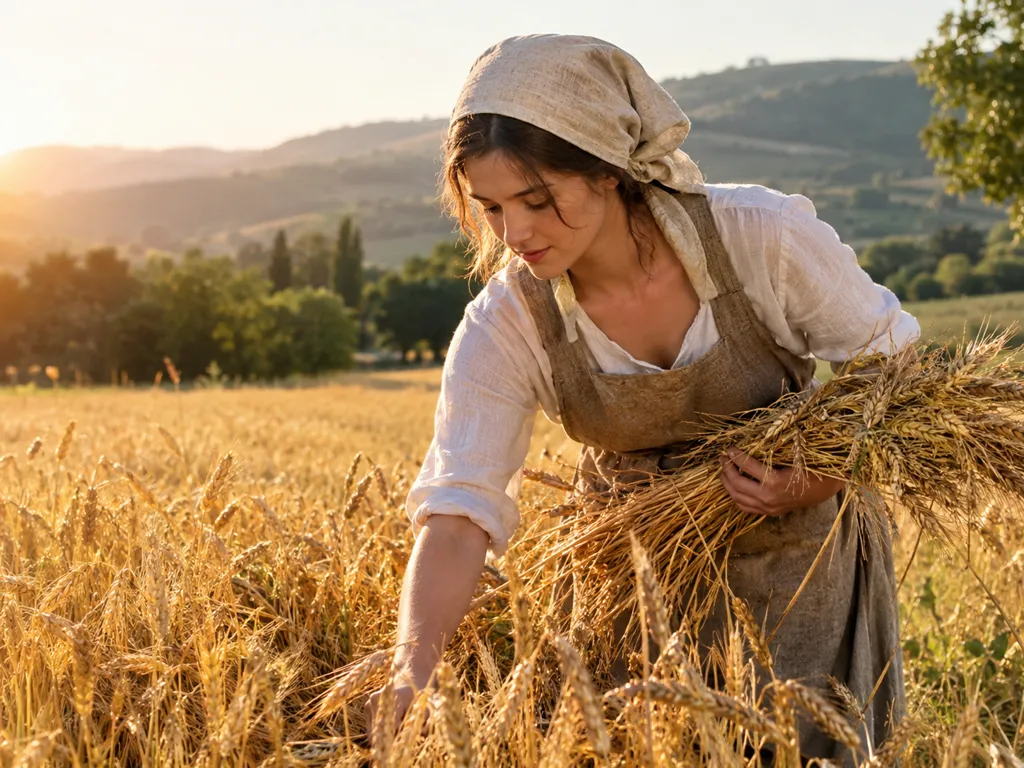
Before 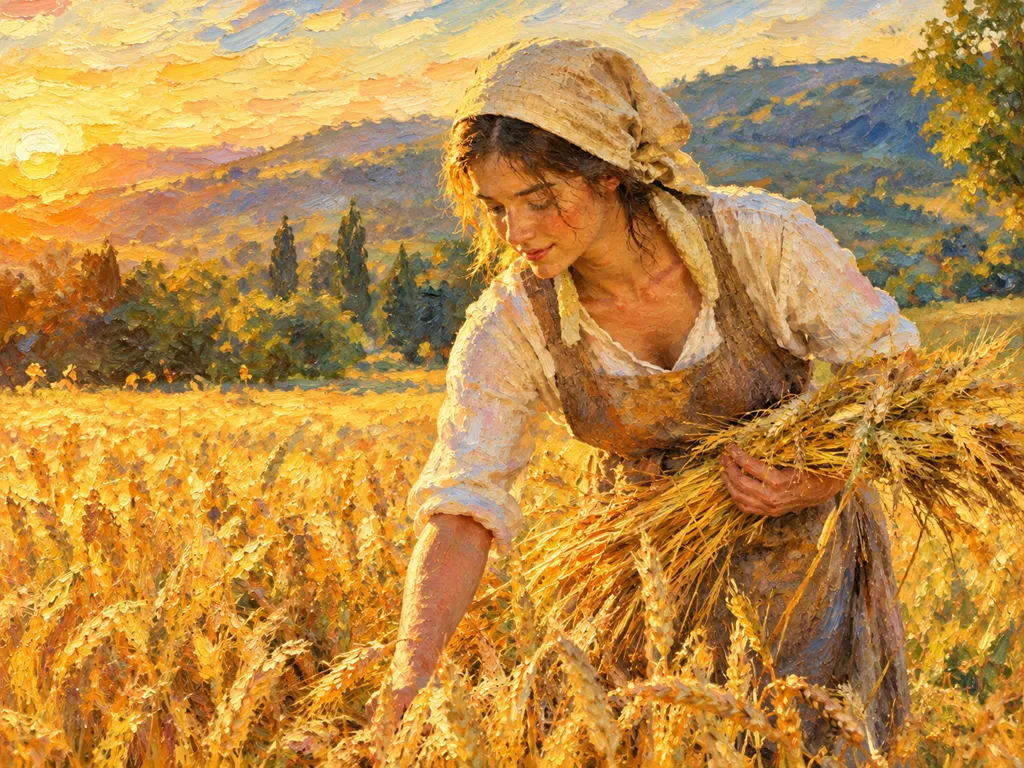
After Restore an old photo
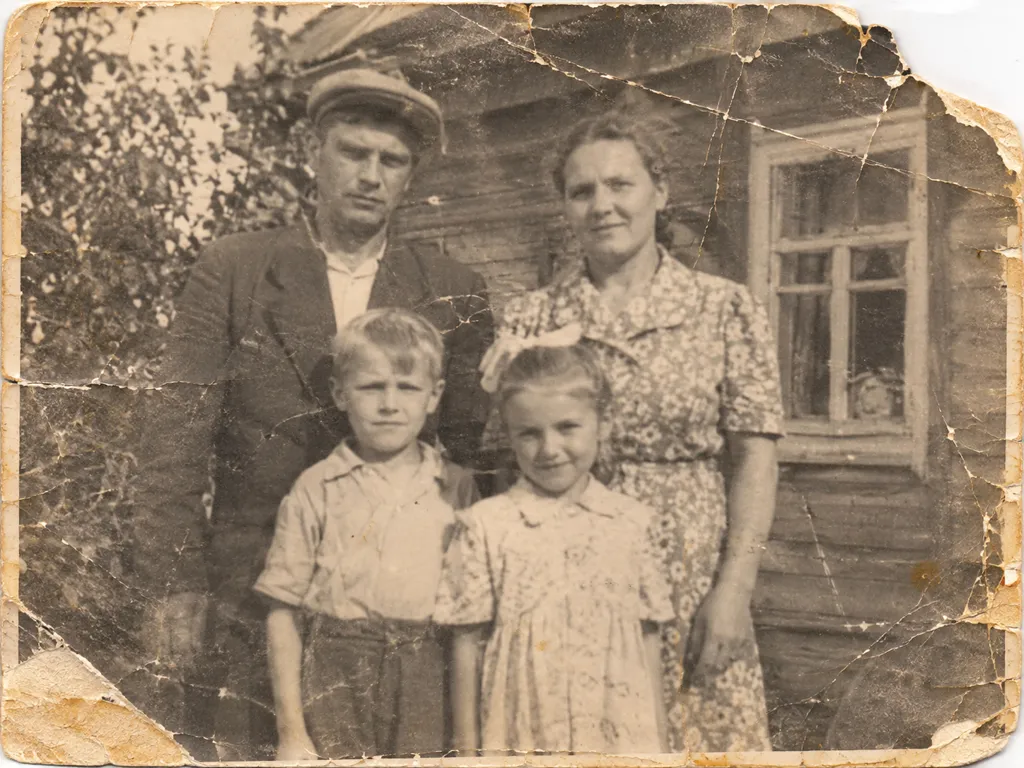
Cracks, creases, dust and torn corners are cleaned up, and colour can be added if you ask for it. The family in the picture stays the same family.
PromptRestore this old photo: remove the cracks, creases, dust and the torn corner, sharpen the faces and add natural, realistic colour. Keep the people, their faces, poses, clothes and the house the same.
Before 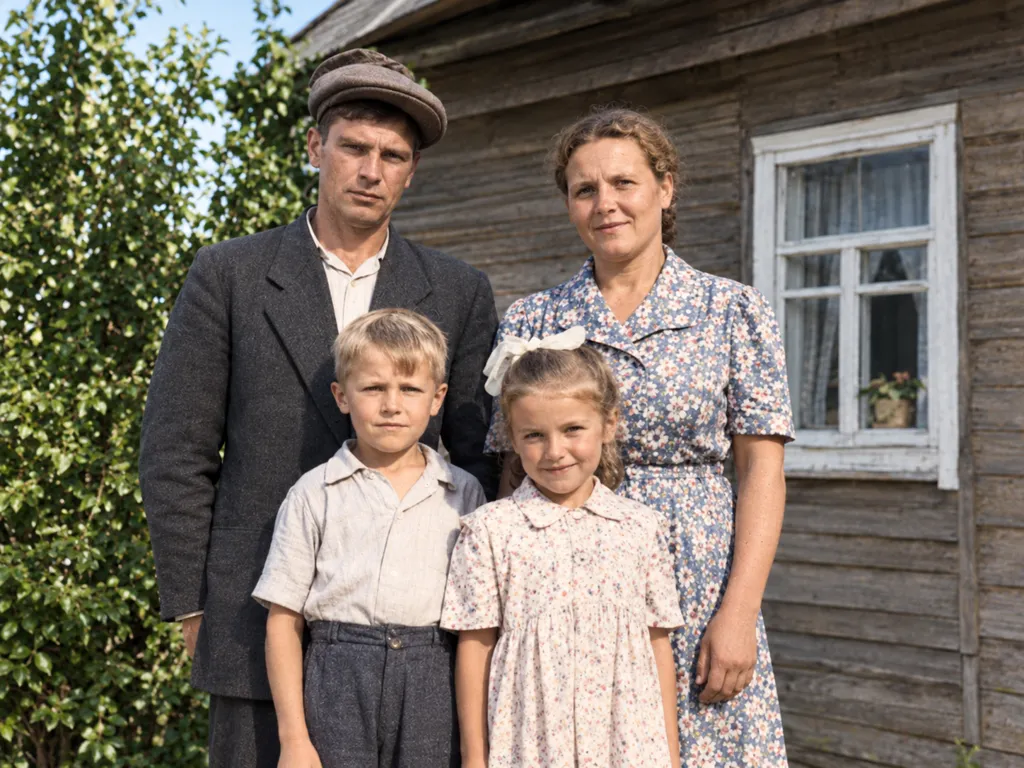
After Add something that was not there
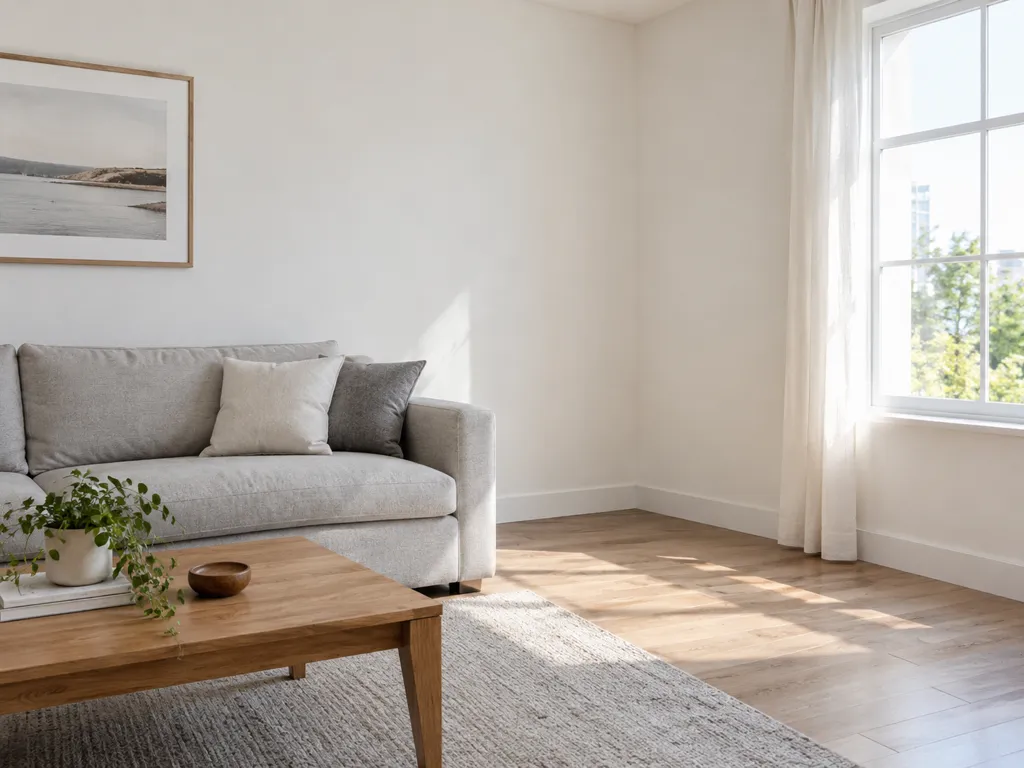
A plant in an empty corner, a cat on the sofa, a lamp on the desk. Say what to add and where, and it arrives lit like the rest of the room.
PromptAdd a tall fiddle-leaf fig plant in a white ceramic pot in the empty corner next to the window, and a ginger cat sleeping on the sofa. Keep the room, the furniture, the window and the light unchanged.
Before 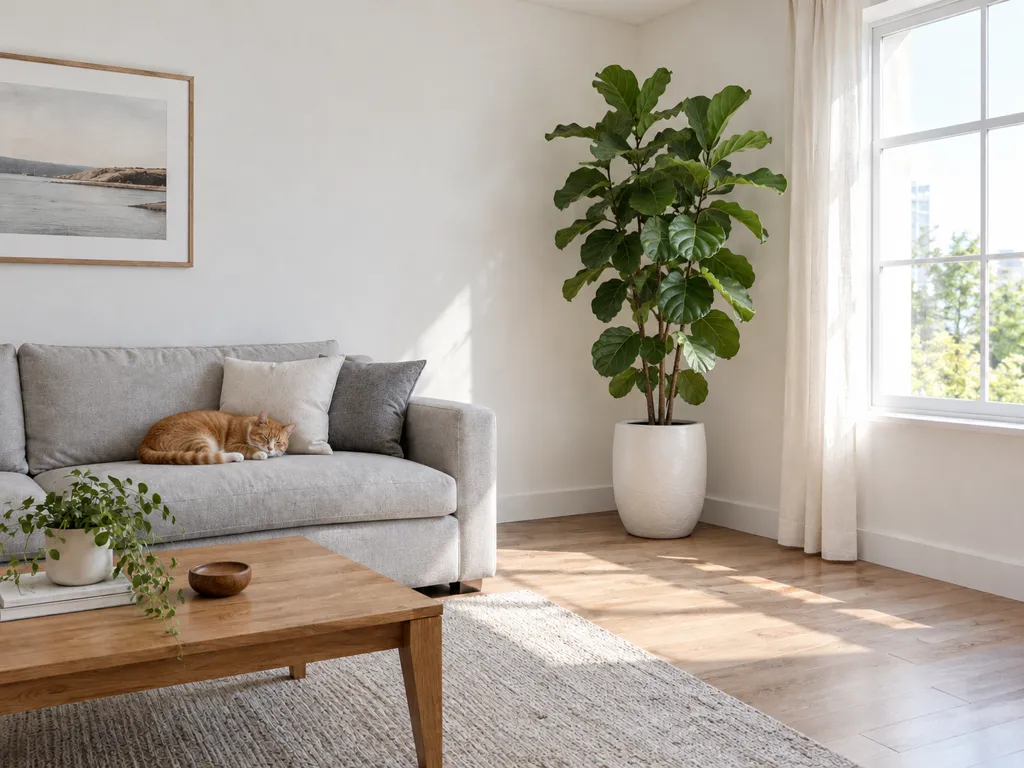
After
How to edit a photo with AI
- 1.
Upload the photo
A JPG, PNG or WebP up to 20MB.
- 2.
Describe the edit
Say what to change and what to keep, or start from one of the quick edits and adjust its words.
- 3.
Download or keep editing
Compare the result with your original, download it, or use it as the starting point for the next change.
How to write an edit prompt
Name the change, then name what must not change. Whatever you leave unsaid, the model is free to redraw.
Removing something
Vague
remove people
Clear
Remove the tourists behind her. Keep her face, her scarf and the street unchanged.
Point at what goes. A bare “remove people” can take the person you wanted to keep.
A new background
Vague
make it a studio photo
Clear
Replace the counter with a beige stone plinth and soft light from the left. Keep the bottle and its label exactly the same.
Describe the new scene and its light, so the subject looks as if it was shot there.
Changing a person’s look
Vague
new hair
Clear
Give him a short textured crop. Keep his face, expression, sweater and the background unchanged.
Listing the face and expression is what keeps the person recognisably the same.
Changing words in the picture
Vague
change the text
Clear
Change the sign to read “TODAY: CHERRY PIE”. Keep the chalk handwriting style and the board unchanged.
Quote the exact words, and say which lettering style to keep.
Four models in one editor
Which model to edit a photo with
GPT Image 2 is selected first. Switching takes one click in the panel, and each model’s price shows on the Edit button before you start.
GPT Image 2
OpenAI’s model. Follows detailed instructions closely and rewrites text cleanly; it made every example on this page.
from 3 ⚡
Nano Banana 2
Google’s model, 1K to 4K. A second opinion on the same photo.
from 6 ⚡
Nano Banana Pro
Google’s more detailed model, 1K to 4K.
from 18 ⚡
Seedream 5.0 Lite
ByteDance’s model. Starts at 2K and goes up to 4K.
from 4 ⚡
AI Image Editor FAQ
Edit a photo you already have
Upload it, describe the change, and compare before and after. Signing up comes with credits to try it.